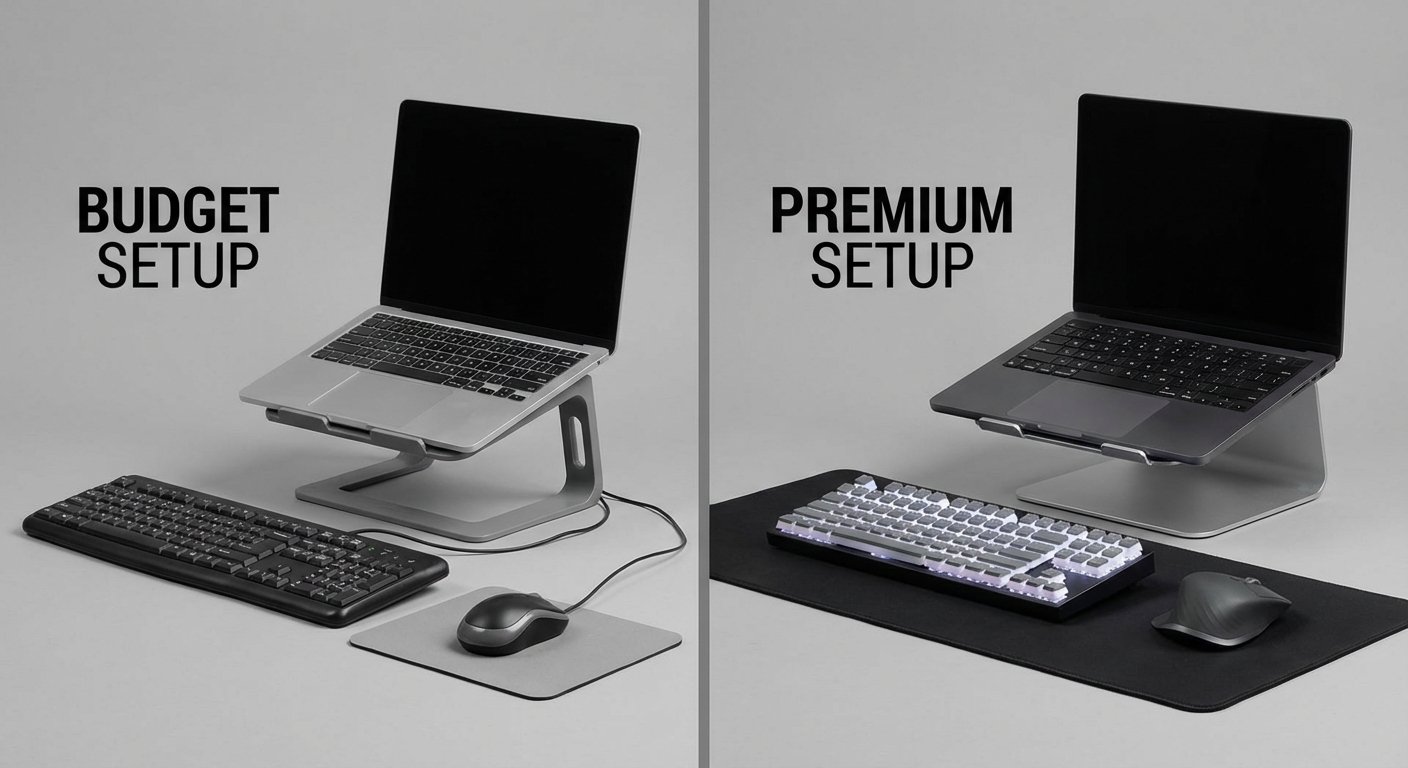
The price gap between budget and premium remote work gear is significant. A Nexstand K2 costs $30; a Roost V3 costs $90. A Logitech K380 costs $35; an MX Keys Mini costs $90. A budget portable setup runs under $100; a premium setup exceeds $300.
Is the premium gear worth nearly 4x the price? The answer isn't universal—it depends on how you work, how long you'll use the gear, and what trade-offs matter to your workflow.
This guide breaks down the actual differences between budget and premium options in each category, helping you decide where to spend and where to save.
Quick Decision Guide
For a complete overview of building your mobile workstation, see our complete remote work setup guide.
In this guide:
- The Full Setup Comparison
- Laptop Stands: Nexstand K2 vs Roost V3
- Keyboards: K380 vs MX Keys Mini
- Mice: Pebble 2 vs MX Anywhere 3S
- Portable Monitors: Budget vs Premium
- Where to Splurge, Where to Save
- Real-World Scenarios
- FAQ
The Full Setup Comparison
Budget Setup (~$95)
| Item | Model | Price | Weight |
|---|---|---|---|
| Laptop Stand | Nexstand K2 | $30 | 8 oz |
| Keyboard | Logitech K380 | $35 | 14 oz |
| Mouse | Logitech Pebble 2 | $25 | 3 oz |
| Total | $90 | 1.6 lbs |
Premium Setup (~$260)
| Item | Model | Price | Weight |
|---|---|---|---|
| Laptop Stand | Roost V3 | $90 | 6 oz |
| Keyboard | Logitech MX Keys Mini | $90 | 17 oz |
| Mouse | Logitech MX Anywhere 3S | $70 | 3.5 oz |
| Total | $250 | 1.7 lbs |
The Price Gap
Premium costs roughly 2.8x more for:
- Slightly lighter overall weight (2 oz difference)
- Better build materials and durability
- Superior typing and mousing experience
- More features (backlit keys, faster charging, better tracking)
- Longer expected lifespan
Is 2.8x the price worth these differences? Let's examine each category.
Laptop Stands: Nexstand K2 vs Roost V3
The laptop stand is the foundation of any portable ergonomic setup. Both options work—but they're not equal.
Nexstand K2 ($30)
Materials: Fiberglass-reinforced nylon
Weight: 8 oz (230g)
Folded size: 1.5 x 1.5 x 14 inches
Height adjustments: 8 positions (5.5-12.6 inches)
Weight capacity: 20 lbs
Pros:
- Dramatically cheaper
- More height adjustment options
- Works well for basic needs
- Good entry point
Cons:
- Slightly bulkier when folded
- Heavier than Roost
- Less refined construction
- More flex during typing
Roost V3 ($90)
Materials: Carbon fiber and thermoplastic polyurethane
Weight: 6 oz (165g)
Folded size: 1.3 x 1.3 x 13 inches
Height adjustments: 7 positions (6-11 inches)
Weight capacity: 50 lbs
Pros:
- Significantly lighter
- Smaller folded profile
- More stable during use
- Superior build quality
- Higher weight capacity
Cons:
- 3x the price
- Fewer height options
- Premium cost for similar function
The Verdict: Laptop Stands
Choose Nexstand K2 if:
- Budget is primary concern
- Testing whether a stand fits your workflow
- You prefer more height options
Choose Roost V3 if:
- You'll use it daily for years
- Every ounce matters (ultralight packing)
- You value premium build quality
- Stability matters (heavier laptops or energetic typing)
Our take: The Roost V3 is worth the premium for daily users. Over 3+ years of use, the cost difference averages to pennies per day. The weight and size savings compound trip after trip. That said, the Nexstand performs the core function well—elevating your screen—at a fraction of the cost.
For detailed comparisons, see our laptop stands guide.
Keyboards: K380 vs MX Keys Mini
Keyboards show the most noticeable quality difference between budget and premium. If you type for hours daily, this matters.
Logitech K380 ($35)
Switch type: Membrane (rubber dome)
Key travel: ~2mm
Weight: 14 oz (400g)
Battery: 2x AAA (2 year life)
Connectivity: Bluetooth only (3 devices)
Backlight: None
Pros:
- Remarkably affordable
- Excellent battery life
- Multi-device switching works well
- Compact and light
- Reliable over years of use
Cons:
- Mushy key feel
- No backlight
- Louder typing sound
- Round keys take adjustment
- Less satisfying for heavy typists
Logitech MX Keys Mini ($90)
Switch type: Scissor (low-profile)
Key travel: ~1.8mm
Weight: 17 oz (500g)
Battery: Rechargeable (10 days backlit, 5 months off)
Connectivity: Bluetooth + USB receiver (3 devices)
Backlight: Yes (auto-adjusting)
Pros:
- Excellent key feel and responsiveness
- Auto-adjusting backlight
- USB-C charging
- Quieter typing
- Smart Functions row
- Premium build quality
Cons:
- 2.5x the price
- Heavier
- Requires occasional charging
- Backlight drains battery faster
The Typing Experience
This is where premium justifies itself for some users:
| Aspect | K380 | MX Keys Mini |
|---|---|---|
| Key feel | Mushy, soft | Crisp, responsive |
| Typing sound | Louder | Quieter |
| Long sessions | Acceptable | Comfortable |
| Accuracy | Good | Better |
| Satisfaction | Functional | Enjoyable |
For touch-typists who spend 4+ hours daily at the keyboard, the MX Keys Mini transforms the experience from tolerable to pleasant. The tactile feedback, consistent resistance, and quieter operation matter during long writing or coding sessions.
For lighter typists or those who mix keyboard/trackpad, the K380's mushy feel is less noticeable, and its functional reliability may be all that's needed.
The Verdict: Keyboards
Choose K380 if:
- Budget is priority
- You type less than 4 hours daily
- You don't notice keyboard quality differences
- Battery life matters more than typing feel
Choose MX Keys Mini if:
- You type extensively (writers, coders, heavy email)
- Keyboard feel significantly affects your productivity
- You work in dim environments (need backlight)
- You value premium typing experience
Our take: This is where budget vs premium matters most. The typing experience difference is tangible and accumulates over thousands of hours. If typing is your primary work activity, the MX Keys Mini is one of the best productivity investments.
For detailed comparisons, see our keyboards guide.
Mice: Pebble 2 vs MX Anywhere 3S
Mice show less dramatic differences between budget and premium—but real differences exist.
Logitech Pebble 2 ($25)
Sensor: 4000 DPI optical
Weight: 3 oz (85g)
Battery: 1x AA (24 months)
Connectivity: Bluetooth + USB receiver (3 devices)
Silent clicks: Yes
Surface tracking: Standard optical (won't work on glass)
Pros:
- Very affordable
- Silent clicks
- Multi-device switching
- Excellent battery life
- Slim, pocketable design
Cons:
- Won't track on glass or glossy surfaces
- Lower precision sensor
- Less ergonomic shape
- Basic scroll wheel
Logitech MX Anywhere 3S ($70)
Sensor: 8000 DPI Darkfield
Weight: 3.5 oz (99g)
Battery: Rechargeable (70 days)
Connectivity: Bluetooth + USB receiver (3 devices)
Silent clicks: Yes
Surface tracking: Darkfield (works on any surface including glass)
Pros:
- Tracks on any surface
- Higher precision sensor
- MagSpeed scroll wheel (1000 lines/second)
- Better ergonomic shape
- Quick charge (1 minute = 3 hours)
- Flow cross-computer control
Cons:
- 2.8x the price
- Slightly heavier
- Requires charging (vs replaceable battery)
The Surface Tracking Factor
The Darkfield sensor is the biggest practical difference. In cafés, hotels, and Airbnbs, you encounter:
- Glass tables
- Glossy lacquered wood
- Granite counters
- Unpredictable surfaces
The Pebble 2 fails on these surfaces—you need a mouse pad or different surface. The MX Anywhere 3S works on literally any surface, including glass.
For nomads who can't control their workspace surfaces, this matters.
The Verdict: Mice
Choose Pebble 2 if:
- Budget is priority
- You always have a mouse pad or matte surface
- Basic precision is sufficient
- You prefer replaceable batteries
Choose MX Anywhere 3S if:
- You work on varied surfaces (café glass tables, etc.)
- Precision matters (design work, detailed selections)
- The scroll wheel sees heavy use
- You value the quick-charge feature
Our take: The MX Anywhere 3S's surface tracking alone justifies the premium for many nomads. Not carrying a mouse pad, not worrying about what surface is available—that's freedom worth paying for. But if you primarily work at desks with normal surfaces, the Pebble 2 performs admirably.
Portable Monitors: Budget vs Premium
Portable monitors show perhaps the widest price range—from $100 budget options to $400+ premium displays.
Budget: KYY K3 ($100)
Resolution: 1080p
Size: 15.6 inches
Panel: IPS
Weight: ~1.5 lbs
Features: HDR support, USB-C + mini-HDMI, included case
Pros:
- Very affordable entry point
- Adequate image quality
- Multiple connection options
- Good for testing if dual screens help
Cons:
- Lower contrast ratio
- Less accurate colors
- Heavier than premium
- Slower response time
Premium: ASUS ZenScreen or ViewSonic OLED ($250-350)
Resolution: 1080p or 4K
Size: 15.6 inches
Panel: IPS or OLED
Weight: ~1.7-1.8 lbs
Features: USB-C single cable, premium stands, better color accuracy
Pros:
- Superior image quality
- More accurate colors
- Better contrast (especially OLED)
- Premium build and accessories
- Some offer 4K resolution
Cons:
- 2.5-3.5x the price
- Similar weight to budget
- Diminishing returns for non-creative work
The Verdict: Portable Monitors
Choose budget if:
- Testing whether dual screens improve your workflow
- Spreadsheets, documents, code—non-color-critical work
- Budget constraints
- You primarily use it occasionally
Choose premium if:
- Color accuracy matters (design, photo editing)
- You use external monitor as primary display
- Image quality significantly impacts enjoyment
- You've confirmed dual screens help your productivity
Our take: Start with budget unless you have specific image quality needs. The productivity gain from dual screens comes from having the extra space—a budget monitor provides that. Upgrade to premium once you've confirmed the workflow benefit.
For detailed comparisons, see our portable monitors guide.
Where to Splurge, Where to Save
Based on real-world impact on daily work:
Worth the Premium
-
Keyboard (if you type extensively): The cumulative experience difference over thousands of hours is significant. This is where premium most noticeably improves daily work.
-
Mouse (if surfaces vary): Surface-independent tracking removes a genuine friction point in nomad work.
-
Laptop stand (if you're committed long-term): The weight, size, and durability improvements compound over years of daily use.
Fine to Budget
-
Portable monitor (for most use cases): Unless you do color-critical work, budget monitors provide the productivity benefit of dual screens.
-
USB-C hub: Budget hubs from reputable brands (Anker, Ugreen) work reliably. Premium hubs mainly add faster card readers or more ports.
-
Lighting: Budget ring lights produce adequate video quality. Premium lights mainly benefit content creators.
The Mixed Approach
Most nomads benefit from a mixed approach:
| Category | Recommendation | Cost |
|---|---|---|
| Laptop stand | Premium (Roost V3) | $90 |
| Keyboard | Premium (MX Keys Mini) | $90 |
| Mouse | Budget (Pebble 2) or Premium | $25-70 |
| Total | $205-250 |
This setup prioritizes the items that most impact daily experience (stand, keyboard) while saving on items with less noticeable differences (mouse, if surfaces are predictable).
Real-World Scenarios
Scenario 1: Testing the Nomad Life
Situation: Three-month trial of remote nomadism. Uncertain if it's long-term.
Recommendation: Full budget setup ($95)
- Nexstand K2 ($30)
- Logitech K380 ($35)
- Logitech Pebble 2 ($25)
Reasoning: Minimal investment to test the workflow. If nomadism becomes permanent, upgrade strategically later.
Scenario 2: Part-Time Remote
Situation: Remote 2-3 days per week. Mixed office/home/café work.
Recommendation: Budget with keyboard upgrade ($160)
- Nexstand K2 ($30)
- Logitech MX Keys Mini ($90)
- Logitech Pebble 2 ($25)
Reasoning: Typing quality matters during work hours; stand and mouse differences are less critical for part-time use.
Scenario 3: Full-Time Writer/Coder
Situation: 6-8 hours daily at keyboard. Words or code are the product.
Recommendation: Full premium ($250)
- Roost V3 ($90)
- MX Keys Mini ($90)
- MX Anywhere 3S ($70)
Reasoning: Every item directly impacts daily work quality. The premium investment pays dividends across thousands of hours.
Scenario 4: Frequent Traveler
Situation: Moves every few days. Carries everything in one bag. Weight is critical.
Recommendation: Premium where weight matters ($180)
- Roost V3 ($90) — 2 oz lighter than Nexstand
- Logitech K380 ($35) — lighter than MX Keys
- MX Anywhere 3S ($70) — no mouse pad needed
Reasoning: The Roost's weight savings matter when you carry everything. The K380's lighter weight outweighs (literally) the MX Keys' typing quality for weight-conscious travelers.
Scenario 5: Video-Heavy Work
Situation: Regular client video calls, presentations, content creation.
Recommendation: Budget base + video upgrades (~$300)
- Nexstand K2 ($30)
- Logitech K380 ($35)
- Logitech Pebble 2 ($25)
- Logitech C920s webcam ($60)
- Elgato Key Light Mini ($90)
Reasoning: Base productivity gear can be budget; invest premium in video quality where it directly impacts professional perception.
FAQ
Frequently Asked Questions
The Bottom Line
Budget remote work gear works. The K380 types. The Pebble 2 mouses. The Nexstand elevates. Millions of remote workers use budget setups productively.
Premium remote work gear works better. The MX Keys Mini typing experience is genuinely superior. The MX Anywhere 3S surface tracking genuinely solves problems. The Roost V3 genuinely lasts longer and packs smaller.
The question isn't whether premium is better—it's whether "better" is worth 2-3x the price for your specific situation.
For committed nomads who type extensively and will use this gear for years: yes, premium pays off.
For those testing the lifestyle, working part-time, or on tight budgets: budget gear lets you work effectively while you figure out what matters.
Start where you can. Upgrade what proves important. The best setup is the one you'll actually use consistently—whatever the price point.
Related guides: