How to Use eSIM with Hotspot Tethering for Laptop Work

This article contains affiliate links. We may earn a commission if you make a purchase through our links, at no extra cost to you.
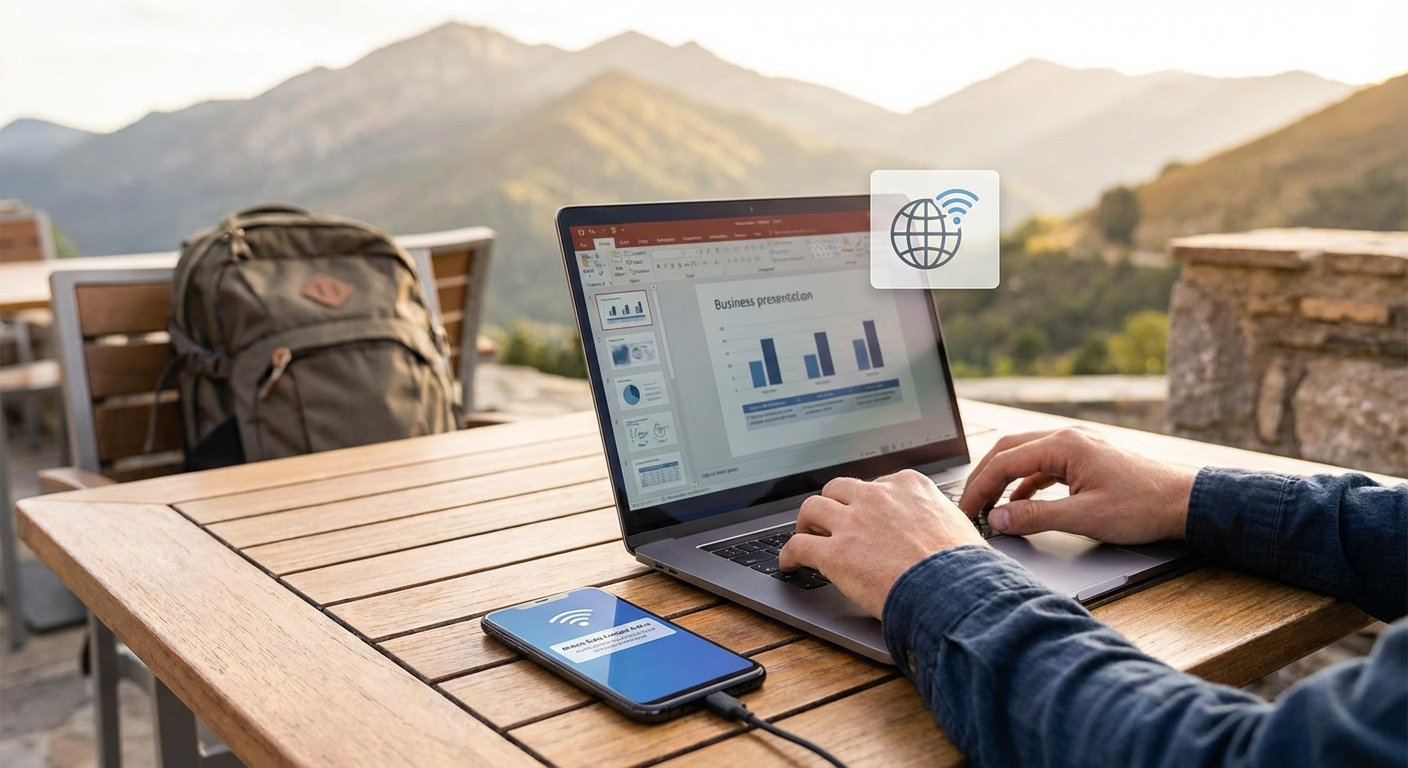
Your phone becomes a portable WiFi router through hotspot tethering. For remote workers, this transforms eSIM data into laptop connectivity anywhere with cellular signal. But not all eSIM plans allow tethering, and not all setups perform equally.
This guide covers making hotspot tethering work reliably with eSIM—from choosing providers that allow it to optimizing your setup for video calls and heavy work.
This article is part of our complete digital nomad connectivity guide, covering everything you need for reliable connectivity anywhere.
The Tethering Reality
What Hotspot Tethering Actually Does
When you enable hotspot, your phone creates a local WiFi network. Your laptop connects to this network, and your phone routes that traffic through its cellular connection—in this case, your eSIM data plan.
Simple in theory. In practice, several factors determine whether this works smoothly or frustratingly.
Why Tethering Matters for Remote Work
- Backup connectivity when hotel WiFi fails
- Primary connection in areas without reliable WiFi
- Security through your own encrypted connection
- Flexibility to work from anywhere with cellular signal
Which eSIM Providers Allow Tethering?
This is the critical question. Not all eSIM providers permit hotspot use, and policies aren't always clear.
Guaranteed Tethering
| Provider | Hotspot Policy | Notes |
|---|---|---|
| Nomad eSIM | Allowed on all plans | Primary differentiator |
| Saily | Allowed on all plans | No restrictions |
| aloSIM | Allowed on all plans | Included by default |
Conditional Tethering
| Provider | Hotspot Policy | Notes |
|---|---|---|
| Airalo | Varies by plan | Check plan details before purchase |
| Holafly | Generally restricted | Most unlimited plans block hotspot |
How to Check Before Buying
Before purchasing any eSIM plan for tethering:
- Read plan details - Look for "hotspot" or "tethering" mentions
- Check FAQ - Provider FAQs often clarify policies
- Contact support - When unclear, ask directly
- Read reviews - Other users report tethering experiences
For a detailed comparison of providers and their tethering policies, see our guide to the best eSIMs for digital nomads.
Setting Up eSIM Tethering
Step 1: Install and Activate eSIM
Before you need tethering, ensure your eSIM is working:
- Download your chosen provider's app
- Purchase a plan that allows tethering
- Follow installation instructions
- Verify the eSIM connects to cellular data
- Test basic internet on your phone
Step 2: Enable Hotspot on Your Phone
iPhone:
- Settings → Cellular → Personal Hotspot
- Toggle "Allow Others to Join"
- Note the WiFi password displayed
Android:
- Settings → Network & Internet → Hotspot & Tethering
- Toggle "WiFi Hotspot"
- Tap to configure name and password
Step 3: Connect Your Laptop
- Open WiFi settings on your laptop
- Find your phone's hotspot network name
- Enter the password
- Verify connection works
Step 4: Optimize for Work
Once connected, optimize for reliable performance:
Keep phone charged - Hotspot drains battery quickly. Keep your phone plugged in or use a power bank.
Position matters - Place your phone where cellular signal is strongest. Near windows typically works best indoors.
Minimize phone use - While tethering, avoid heavy phone activities that compete for bandwidth.
Optimizing Hotspot Performance
USB Tethering vs WiFi Hotspot
WiFi hotspot is convenient but not always optimal. USB tethering offers advantages:
USB Tethering Benefits:
- More stable connection
- Charges phone simultaneously
- Often faster speeds
- Lower latency
How to USB Tether:
- Connect phone to laptop via USB cable
- On phone: Enable USB tethering in settings
- Laptop should detect network automatically
USB tethering works on both Mac and Windows, though Mac may require initial setup.
Band Selection and Signal
Your hotspot speed depends entirely on your phone's cellular connection. To maximize performance:
Find good signal - Check signal strength indicator. Three or more bars provides reliable tethering.
Try different locations - Moving a few meters can significantly change signal quality.
Avoid interference - Metal structures, thick walls, and basements typically have worse signal.
Consider time of day - Cellular networks can be congested during peak hours.
Managing Data Usage
Laptops consume data differently than phones. Common data drains while tethering:
| Activity | Approximate Data Use |
|---|---|
| Video call - 1 hour | 1-2 GB |
| Web browsing - 1 hour | 100-300 MB |
| Email - 1 hour | 20-50 MB |
| Cloud sync - varies | Can be significant |
| OS updates | Often several GB |
Reduce unnecessary data use:
- Disable automatic updates on laptop while tethering
- Pause cloud sync for Dropbox, Google Drive, etc.
- Use compressed video for calls when possible
- Close background apps that might sync or update
Tethering for Video Calls
Video calls are the most demanding use case for hotspot tethering. Success depends on your cellular connection quality.
Minimum Requirements
| Call Type | Minimum Speed | Recommended |
|---|---|---|
| Audio only | 0.5 Mbps | 1+ Mbps |
| Video - standard | 1.5 Mbps | 3+ Mbps |
| Video - HD | 3 Mbps | 5+ Mbps |
| Screen sharing | 2 Mbps | 4+ Mbps |
Testing Before Important Calls
Before critical meetings:
- Speed test - Run a speed test on your laptop while tethered
- Test call - Make a brief test call to verify quality
- Backup plan - Know where nearby WiFi exists if needed
- Battery check - Ensure phone is charged or plugged in
During the Call
Keep video off initially - Start with video off to verify connection, then enable if stable.
Monitor signal - Watch your phone's signal indicator throughout the call.
Have audio backup - Be ready to switch to audio-only if video struggles.
Close other tabs - Minimize bandwidth competition during the call.
Troubleshooting Common Issues
Hotspot Won't Enable
Check eSIM plan - Some plans explicitly block tethering. Verify your plan allows it.
Restart phone - Power cycle sometimes resolves activation issues.
Check data balance - Ensure you have remaining data on your plan.
Contact provider - If plan should allow tethering but doesn't work, contact support.
Connection Drops Frequently
Signal issue - Move to area with better cellular coverage.
Phone overheating - Phones throttle when hot. Let it cool or improve ventilation.
Interference - Move away from other electronics or metal structures.
Try USB tethering - More stable than WiFi hotspot for sustained use.
Slow Speeds
Congested network - Try again during off-peak hours.
Data throttling - Some plans throttle after certain usage. Check your plan terms.
Phone limitations - Older phones may have slower cellular modems.
Background usage - Close apps on both phone and laptop consuming bandwidth.
Laptop Won't Connect
Forget and reconnect - On laptop, forget the hotspot network and reconnect fresh.
Check password - Verify you're entering the hotspot password correctly.
Restart hotspot - Disable and re-enable hotspot on phone.
Try USB instead - WiFi hotspot issues don't affect USB tethering.
Battery Management
Hotspot drains phone battery quickly—often 15-25% per hour under active use.
Keep Phone Powered
Best approach: Keep phone plugged into power while tethering. USB tethering to laptop accomplishes this automatically.
Power bank - If outlet isn't available, a quality power bank keeps you working. See our portable power guide for recommendations.
Minimize Drain
Lower screen brightness - Screen is a major battery consumer.
Disable unnecessary radios - Turn off Bluetooth and NFC while tethering.
Close background apps - Reduce other phone activity during tethering.
Use USB tethering - Charges phone while providing connection.
When Hotspot Isn't Enough
Tethering works for most situations, but dedicated hardware offers advantages for heavy use:
Consider a Portable Hotspot If:
- You tether several hours daily
- Video calls are frequent and critical
- You need to connect multiple devices
- Battery drain is problematic
- You want external antenna support
For dedicated hotspot recommendations, see our guide to best portable WiFi hotspots for travel.
Consider a Travel Router If:
- Hotel WiFi is your primary connection
- You want VPN protection for all devices
- Multiple devices need simultaneous connection
- Security on public WiFi concerns you
For travel router options, see best travel routers for digital nomads.
Frequently Asked Questions
Does tethering use more data than regular phone use?
Tethering itself doesn't use more data, but laptops typically consume more data than phones for the same activities. Web pages load desktop versions, cloud services sync more aggressively, and background processes are more active.
Can my carrier detect tethering?
Yes, carriers can detect tethered traffic. However, eSIM providers that allow tethering don't typically monitor this. The concern is mainly with plans that prohibit tethering.
Will tethering damage my phone?
No permanent damage, but sustained tethering generates heat and drains battery faster. Using USB tethering or keeping the phone plugged in and well-ventilated prevents issues.
How do I know if my speed is good enough?
Run a speed test while tethered. For basic work, 5 Mbps download is adequate. For video calls, aim for 10+ Mbps. For heavy use, 25+ Mbps is ideal.
Can I tether to multiple devices?
Yes, most phones support multiple hotspot connections—typically 5-10 devices. However, bandwidth divides between connected devices, so performance degrades with more connections.
Conclusion
eSIM hotspot tethering provides reliable laptop connectivity when you choose the right provider and optimize your setup. The key factors:
Provider choice matters - Select an eSIM provider that explicitly allows tethering. Nomad eSIM, Saily, and aloSIM guarantee it.
Optimize for performance - Use USB tethering when possible, position for best signal, and manage data-hungry applications.
Have backup plans - Tethering depends on cellular coverage. Know where WiFi exists as backup.
For remote workers, tethering transforms your phone into a backup office network. With the right setup, you can work reliably from anywhere with cellular signal.
For the complete picture of connectivity options while traveling, explore our complete digital nomad connectivity guide.
About the Author